Design prompts for buttons
A button is the smallest thing in your UI and the one users touch the most, so getting it right is mostly about restraint and clarity. The good ones make exactly one action look like the obvious next step, label it with the outcome instead of a vague "Submit", stay solid enough to read as clickable, give a comfortable tap target, and draw every state a real product needs (hover, focus, loading, disabled), not just the resting one. The prompts below are the most-copied button and button-system designs in the Superdesign library, from a rotating light-beam border and a springy jelly press to full neutral, glass, brutalist and 3D button systems with every variant and state on one canvas. Open any one to see the exact prompt behind it, then tweak the copy and generate your own editable version in seconds.
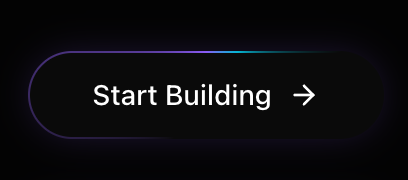
Light Beam Button
A high-performance button with a rotating light beam border effect using CSS @property and conic gradients. Features a shiny hover state and gradient border animation.
Jelly Squish Button
A high-fidelity interactive 3D jelly simulation that responds to vertical dragging and mouse movement. Uses GSAP for physics-based animation and optimized image sequencing. Perfect for playful hero sections or interactive showcases. Source: https://codepen.io/cerpow/pen/LEZYxqM
Glow Cursor Button
Creepy Button
A playful, interactive button with eyes that blink and track the cursor movement. Perfect for gamified interfaces or playful call-to-actions. Source: https://codepen.io/jkantner/pen/ZYWKvqW
BookCallCta
Button loading state
Neon Typing Button
A button component that show dynamic typing animation when hovering

STATISIO Landing Page - Content & Button Update
A high-impact, brutalist-grunge design system inspired by vintage newsprint and industrial aesthetics. Characterized by a high-contrast palette of newsprint beige and crimson red, it features heavy monospaced typography, grainy overlays, and 'stamped' UI elements. Ideal for disruptive SaaS, edgy marketing agencies, fintech, or any bold brand seeking a raw, editorial feel with modern interactivity. Key features include animated tickers, halftone backgrounds, and stepped scroll animations.

Button Studio - A Playful Button System
A warm, playful pastel button system on cream paper: every variant, size and state as soft, fully-rounded buttons with a springy press, sky + coral accents and Poppins, framed as one Button Studio canvas.
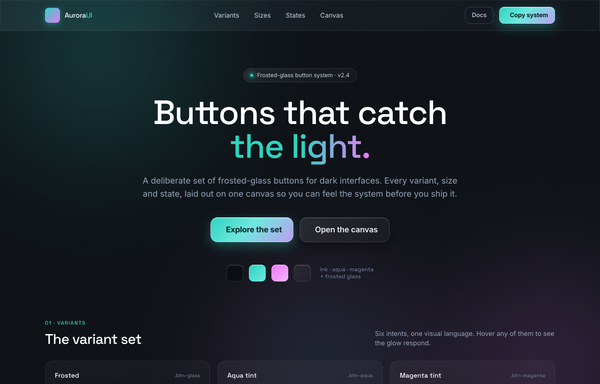
Buttons that catch the light - Aurora frosted-glass button system
Dark glassmorphism button system: frosted-glass buttons over an aqua + magenta aurora background, with tinted, ghost and aurora-gradient variants, three sizes, hover/loading/disabled states, and a full variants-by-states canvas.
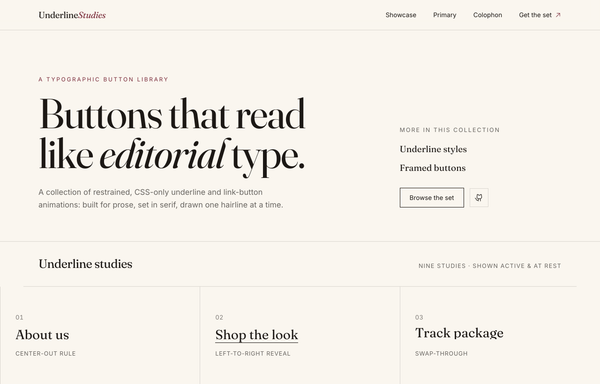
Editorial Buttons - Underline Studies
Editorial, print-inspired button library: nine CSS-only serif underline animations plus framed fill/ghost buttons, on cream paper with ink + burgundy.
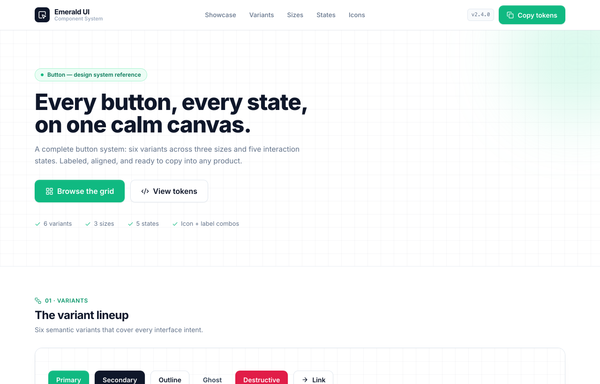
Every button, every state, on one calm canvas - Emerald UI Button System
A complete, copy-ready button design system on one calm reference page: six semantic variants (primary, secondary, outline, ghost, destructive, icon-only) across three sizes (small 32px, default 40px, large 48px) and five interaction states (default, hover, active, disabled, loading). A sticky frosted nav and emerald hero open onto five labeled sections (variant lineup + token strip, an anatomy grid showing rest/hover/active per variant, a sizes band, a five-state strip, and an icon-button + icon+label block). White canvas with a faint dotted grid, slate ink text, a single emerald #10b981 accent, Inter, and Iconify Lucide icons; reflows cleanly to mobile.

Graphite - Every button, one calm grammar.
A strictly monochrome button system in graphite and platinum on warm paper: five variants (solid, outline, soft, ghost, link), three sizes, and every state (hover, focus, loading, disabled) drawn on hairline borders with no accent color, framed as a real documentation page.
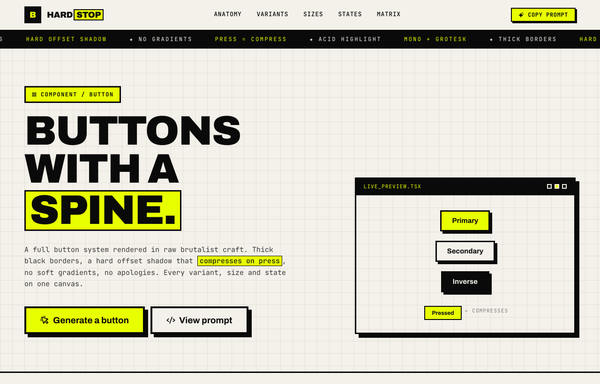
HARDSTOP - Buttons With a Spine: A Brutalist Button System
Neo-brutalist button system: thick 3px ink borders, hard acid-yellow offset shadow that compresses to zero on press, JetBrains Mono + Archivo, every variant, size and state on one graph-paper canvas.
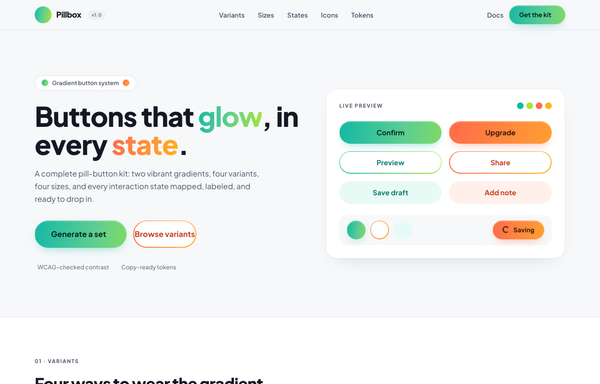
Pillbox · A Gradient Button System That Pops
A complete pill-button design system on one vibrant reference page: two gradient color stories (teal->lime #14b8a6->#a3e635 and coral->amber #ff6b4a->#ffb020) across four variants (fill, gradient outline, soft, icon-only), four sizes (XS 34px, SM 40px, MD 48px, LG 58px) and six interaction states (default, hover, active, focus, disabled, loading). A sticky frosted nav and a dotted-grid hero with a live-preview card open onto five labeled sections: variants (two gradient columns), a sizes scale table, a six-state grid, an icons & composition block, and a tokens palette closed by a gradient-bordered dark CTA. Fully-rounded pills on a light #f7f8fa canvas with near-black ink text, Plus Jakarta Sans, and Iconify Phosphor icons; dense tables scroll on mobile instead of clipping.
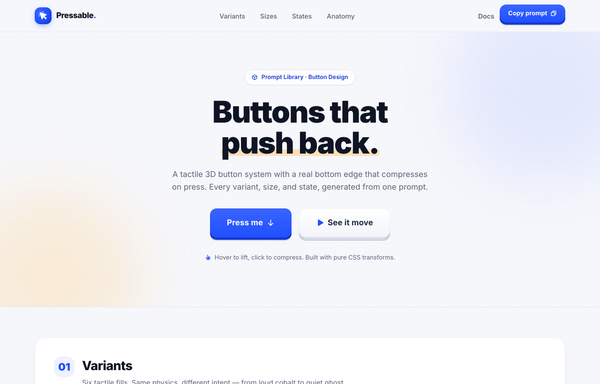
Pressable - A 3D Button System (cobalt)
A tactile 3D 'pushable' button system on a light base: cobalt gradient button faces with a real bottom edge that lifts on hover and compresses on press, with every variant, size and state and an anatomy breakdown, in Inter.
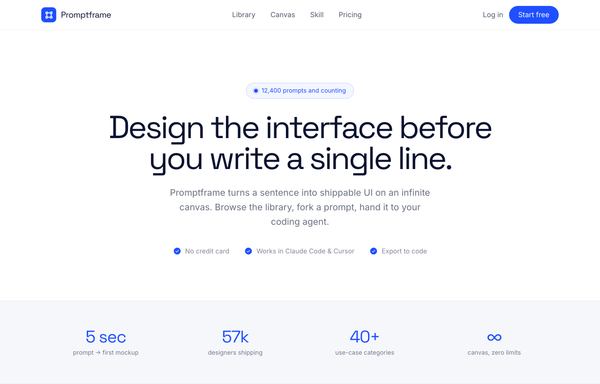
Promptframe - Full-Bleed Color-Block Cobalt CTA
Confident color-block SaaS landing built from full-bleed bands (white to paper gray to ONE loud cobalt to dark ink), Space Grotesk tight-tracked headlines over Inter body, anchored by a saturated cobalt CTA band with dot-grain texture, soft white and deeper-cobalt glows, and a white drop-shadow pill button.
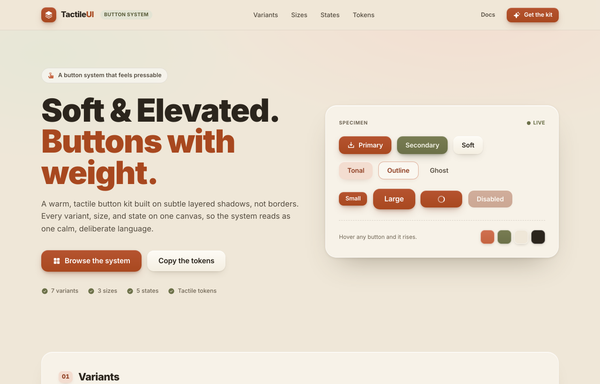
Soft & Elevated - A Warm Button System
A warm, tactile soft-elevated button system on a sandy base: terracotta and olive buttons built from layered shadows (not borders) that lift on hover, with every variant, size and state plus a token recipe, in Inter.
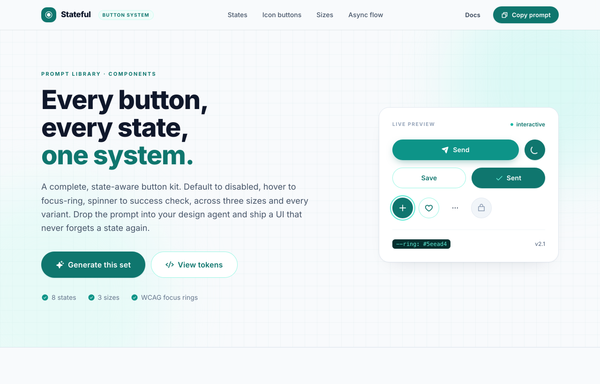
Stateful - A Button System Built for Every State
A documentation-grade teal button system: 8 interactive states (default, hover, active, focus-ring, disabled, loading spinner, success check, icon-only) across solid, outline and ghost variants in three sizes, with an async click-to-confirmation flow, all in pill-shaped Inter buttons on a clean slate canvas.
How to prompt a button that looks designed, not generated
An AI design agent has a strong default for a button, and most of those defaults work against the click: a row of equal-weight buttons with no clear primary, generic labels like "Submit" or "Get Started", a flat low-contrast fill that does not read as pressable, a cramped tap target, only the resting state, and the usual Inter on a purple gradient. A good prompt is really a list of constraints that override those defaults. Here is each default you need to override, the words that do it, and a template that bakes them all in.
Design a [light or dark] button [or a button system] for [product], a [what it is] for [who it is for].
Hierarchy: ONE primary action only. Give secondaries less weight as an outline, ghost or text-link variant, never a second solid button of equal weight.
Label: name the outcome, like "Start designing free" or "Save changes", never "Submit", "Get Started" or "Learn More".
Affordance and contrast: a solid fill in one accent on a calm background, clearing WCAG AA 4.5:1, so it plainly reads as clickable.
Target: a comfortable 44 by 44px minimum hit area with spacing between adjacent buttons, so it taps cleanly on a phone.
States: draw them all, default, hover, focus, loading (with a spinner) and disabled, plus an error if the action can fail.
Variants and sizes: [primary, secondary, outline, ghost, destructive, icon] across [small, default, large], all sharing one radius and scale.
Style: a neutral base with one [accent] color reserved for the primary. Typeface [name], not the default Inter, and no purple gradient.
One primary action
Default: It drops a row of buttons of near-equal weight, a Save beside a Cancel beside an Export, so attention splits and nothing reads as the main action. Material Design is explicit that you use only one primary button per view.
Constrain it: Ask for exactly one primary button. Make any alternative a quieter outline, ghost or text-link variant, never a second solid button of equal weight.
A label that names the outcome
Default: It reaches for generic verbs, a gray "Submit", a vague "Get Started" or a "Learn More" that names no outcome, so the user has to guess where the button leads. Nielsen Norman Group warns these labels raise a question instead of answering it.
Constrain it: Make the label name the outcome and finish the headline's sentence, like "Start designing free" or "Save changes", so the user knows exactly what happens next.
Affordance and contrast
Default: Left alone it tints the button a shade of the busy background it sits on, so it reads at roughly 2:1 and looks like plain text, not something you press.
Constrain it: Ask for a solid fill in one accent on a calm background that clears the WCAG AA 4.5:1 minimum, so the button plainly signals it is clickable.
A comfortable tap target
Default: It sizes buttons for a mouse and packs them tight, so on a phone the wrong one gets tapped and motor-impaired users miss far more often.
Constrain it: Require a 44 by 44px minimum target with spacing between adjacent buttons, the touch size Apple and WCAG recommend for reliable taps.
Every state, not just the happy path
Default: It builds only the resting button and silently skips hover, focus, loading and disabled, so the design falls apart the moment a real person interacts with it.
Constrain it: Ask for the states by name: default, hover, focus, a loading state with a spinner, and disabled, plus an error if the action can fail.
Color and type
Default: Left alone it defaults to Inter, a dark theme with a purple gradient, and rainbow accents used as decoration, the house style of a vague prompt.
Constrain it: Name a typeface and one accent color on a neutral base, and reserve that accent for the primary button only.
Frequently asked questions
What makes a good button design?
A good button makes one action look like the obvious next step. It is solid enough to read as clickable, labeled with the outcome instead of a vague "Submit", high enough contrast to clear WCAG AA at 4.5:1, big enough to tap comfortably (a 44 by 44px target), and it draws every state a real product needs: default, hover, focus, loading and disabled. Restraint beats decoration: one clear primary does more than three competing buttons ever will.
How many button styles or variants should I use?
Lead with one primary and let the rest step down in emphasis. Material Design recommends only one primary (filled) button per view, with alternatives as outline, tonal, ghost or text variants so the eye still knows where to go. A practical set is primary, secondary, outline, ghost, a destructive variant for risky actions, and an icon button, all sharing one radius and size scale.
What button states do I need to design?
At minimum default, hover, focus, active or pressed, and disabled, plus a loading state for any action that takes time. Nielsen Norman Group treats these states as how a button communicates that it is clickable and that your interaction registered, and notes a pressed state should appear within 100 to 150ms so people do not tap twice. If the action can fail, draw an error state too.
How big should a button be for touch?
Give it a comfortable hit area. WCAG 2.2 sets a 24 by 24px minimum at Level AA, but the widely recommended touch target is 44 by 44px (Apple Human Interface Guidelines) or 48 by 48dp (Material Design), with spacing between adjacent buttons. Even if the visible button is smaller, padding can make the tappable area reach 44px, which sharply cuts mis-taps on mobile.
Why does my AI-generated button look generic?
Because a vague prompt gets the model defaults: a row of equal-weight buttons with no clear primary, a generic "Submit" or "Get Started" label, a flat low-contrast fill that does not look pressable, only the resting state, and the usual Inter on a purple gradient. Constrain it to one primary action, an outcome-naming label, a solid high-contrast accent on a neutral base, a 44px target, every state drawn, and a named typeface, and it stops reaching for the average.
How do you write a prompt to generate a button UI?
Describe the brief, not the vibe: the product and who it is for, exactly one primary action with any alternative as a quieter variant, a label that names the outcome, one accent color on a neutral base for contrast, a 44px touch target, the full set of states (default, hover, focus, loading, disabled), and the variants and sizes you want. The template above walks through each part, and you can open any example here to see a full prompt that works.
Can I use my own brand colors and typeface?
Yes. Generate the button or system first, then describe your accent color, typeface, radius and label in plain language and branch a variant. Every design comes back as real, editable code, so wiring it into your own components happens in your repo, not a rebuild from a picture. Stuck on something? Ping us and we will sort it out together.