Design prompts for login pages
A login page has one job: let a returning person back in with as little friction as possible. The ones that feel effortless lead with the providers and passkeys people already use, so most never type a password at all, keep one clear primary action, put a forgot-password link right where it is needed, and never blur login with sign up. The prompts below are the most-copied login, sign in and auth designs in the Superdesign library, from playful split layouts to minimal wireframes, dark glass and enterprise SSO. Open any one to see the exact prompt behind it, then tweak the copy and generate your own editable version in seconds.
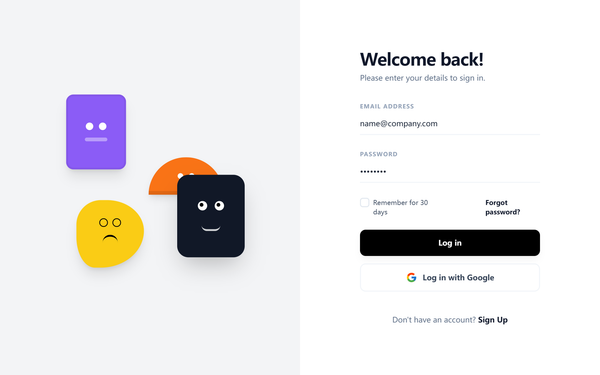
Playful Split-Layout Login
A playful and modern split-layout design system ideal for authentication and onboarding screens. It balances a minimalist, high-contrast user interface with a vibrant, creative brand side featuring floating geometric 'character' illustrations. Key features include editorial typography using the Satoshi font, a neutral-to-vivid color palette (#F3F4F6, #8B5CF6, #111827, #F97316, #FACC15), and subtle micro-interactions like growing underline focus states and 6-second ease-in-out float animations. Perfect for fintech, SaaS, ed-tech, and design-led digital products.
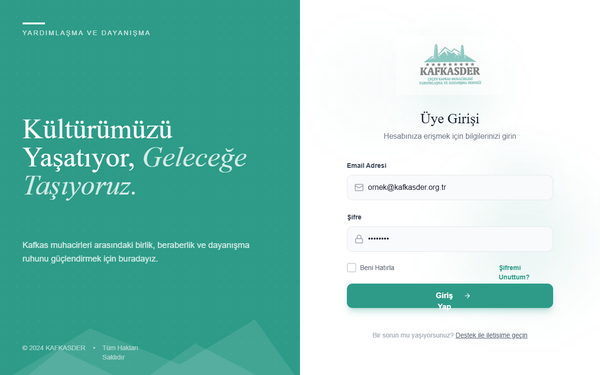
KAFKASDER Premium Animated Login
A premium split-screen login page featuring a deep teal color palette, elegant editorial serif typography, and sophisticated micro-interactions. Includes organic floating particle animations, mountain-inspired clip-path graphics, and glow-based focus states. Ideal for NGOs, heritage brands, cultural organizations, or upscale SaaS platforms looking for a trust-building, academic, and modern aesthetic.
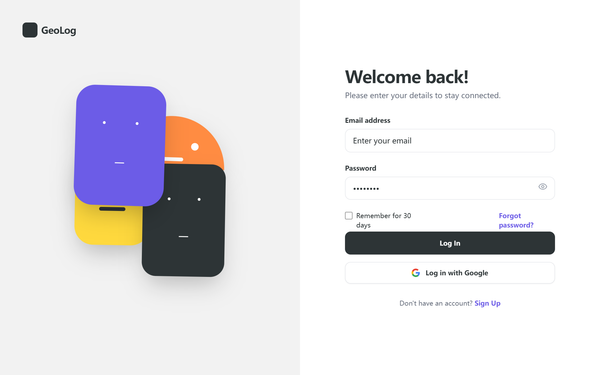
Cuter Mini-Geometric Login Page
A playful, modern login interface featuring a minimalist geometric illustration style with 'kawaii' character aesthetics. The design balances professional clean layouts with vibrant, animated shapes. Utilizing a split-screen approach, it pairs a charcoal-and-purple primary palette with pops of orange and yellow. Ideal for ed-tech, creative SaaS platforms, Gen-Z focused fintech, or lifestyle applications that want to convey personality and friendliness without sacrificing professional usability. Includes floating CSS animations, rounded UI components, and high-quality typography pairing.
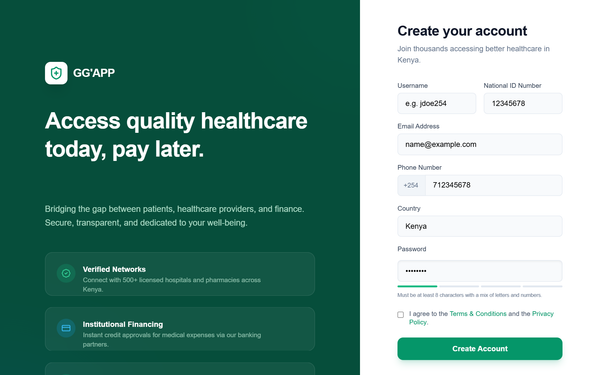
GG'APP Multi-Role Auth & Enhanced Login
A professional healthcare-focused authentication system featuring a dual-pane layout with emerald and sky blue accents. Optimized for multi-role platforms (patients and service providers), it uses a clean, modern aesthetic with editorial typography (General Sans and Satoshi), glassmorphism elements, and subtle micro-interactions. Suitable for fintech, healthcare, and SaaS dashboards requiring secure login and registration flows.
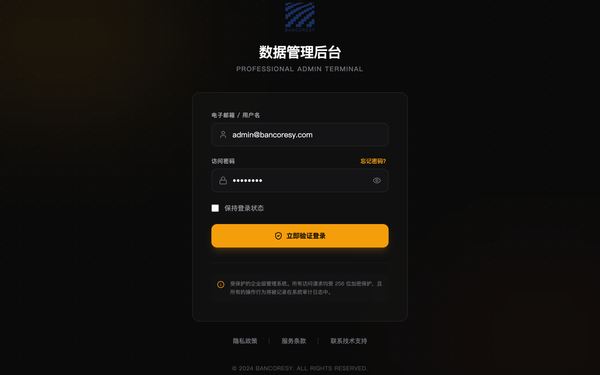
Bancoresy Admin Login - Enhanced Background
A professional, high-end administrative login system featuring a sophisticated layered background, glassmorphism card components, and a premium color palette of gold, amber, and neutral zinc. Optimized for fintech, enterprise SaaS, or secure data management portals. Design highlights include architectural geometric line patterns, soft gradient blobs for depth, and crisp typography using Satoshi and Cabinet Grotesk. Layout features a centered, high-contrast modal with elegant micro-interactions like scale-on-click and smooth fade-in animations.
KAFKASDER Login
A sophisticated teal and slate modern login interface designed for professional SaaS, fintech, or educational platforms. This style features a clean editorial look using Plus Jakarta Sans typography, high-contrast slate text, and vibrant teal accents. The layout incorporates a center-aligned card with generous padding, subtle glassmorphism on auxiliary elements, and dynamic, organic background animations using 'blob' keyframes. Key features include highly accessible form fields with iconography, focus-driven micro-interactions, and a distinctive 2px top accent bar.
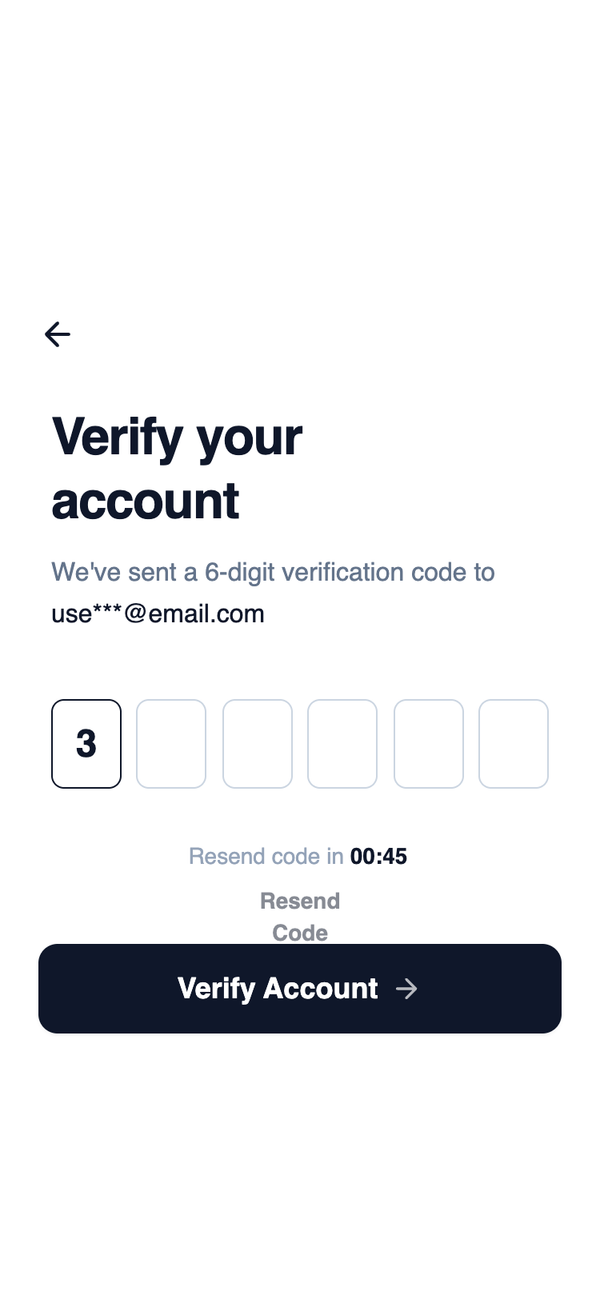
Mobile OTP Verification
A highly focused layout centered around horizontally aligned OTP input fields. Supporting actions are secondary and visually subdued, keeping attention on code entry and completion.
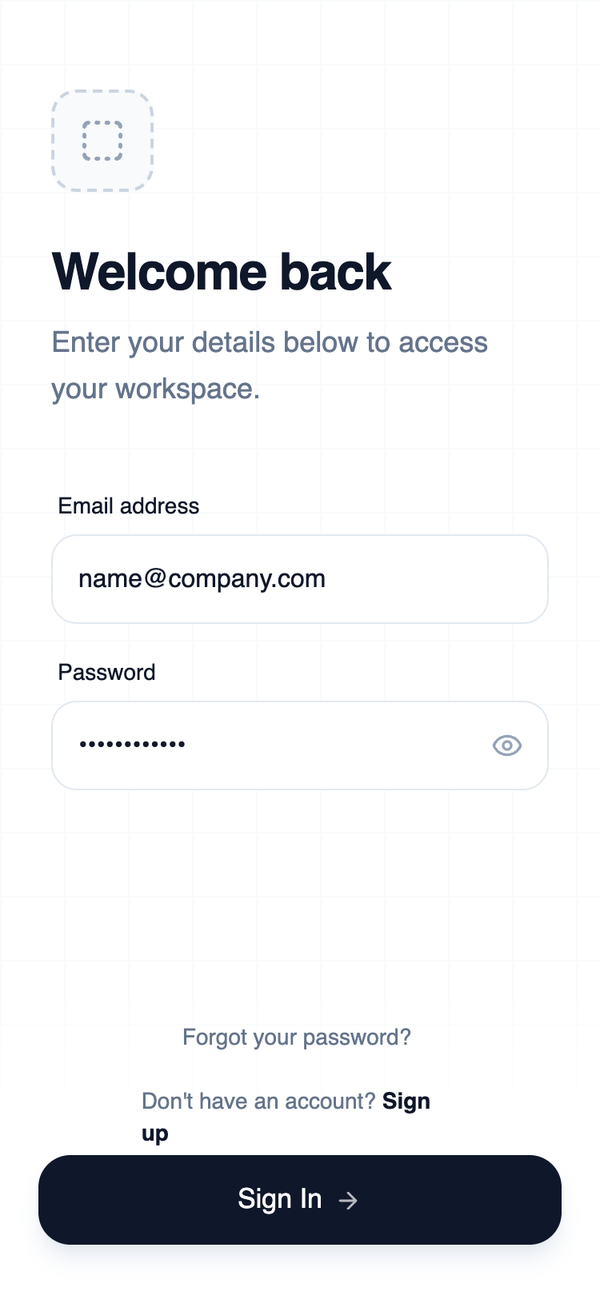
Minimalist Wireframe Login
A high-contrast, minimalist mobile login wireframe optimized for thumb reach and ergonomic ergonomics. It features a slate-heavy palette, industrial-style grid textures, and clean 'General Sans' typography. Suitable for SaaS dashboard entry, fintech authentication, developer tools, and high-end enterprise mobile applications requiring a professional, focus-oriented interface.
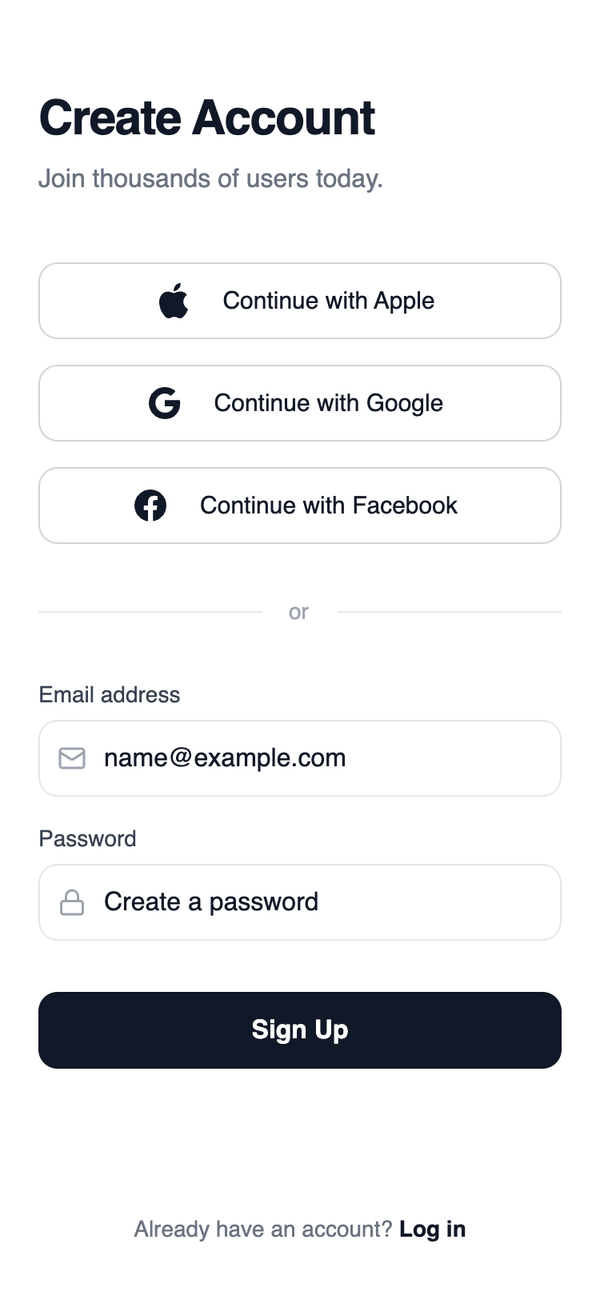
Social first sign up
A minimalist, high-fidelity mobile authentication wireframe optimized for social login conversion. Features a grayscale palette (blacks, whites, and specific gray scales), sophisticated typography using Plus Jakarta Sans, and high-contrast touch targets. Ideal for SaaS, fintech, or any modern mobile application onboarding where social sign-in is the primary user journey. The layout focuses on clean vertical stacks, 48px touch heights, and subtle micro-interactions like scale-down on press and smooth border transitions.
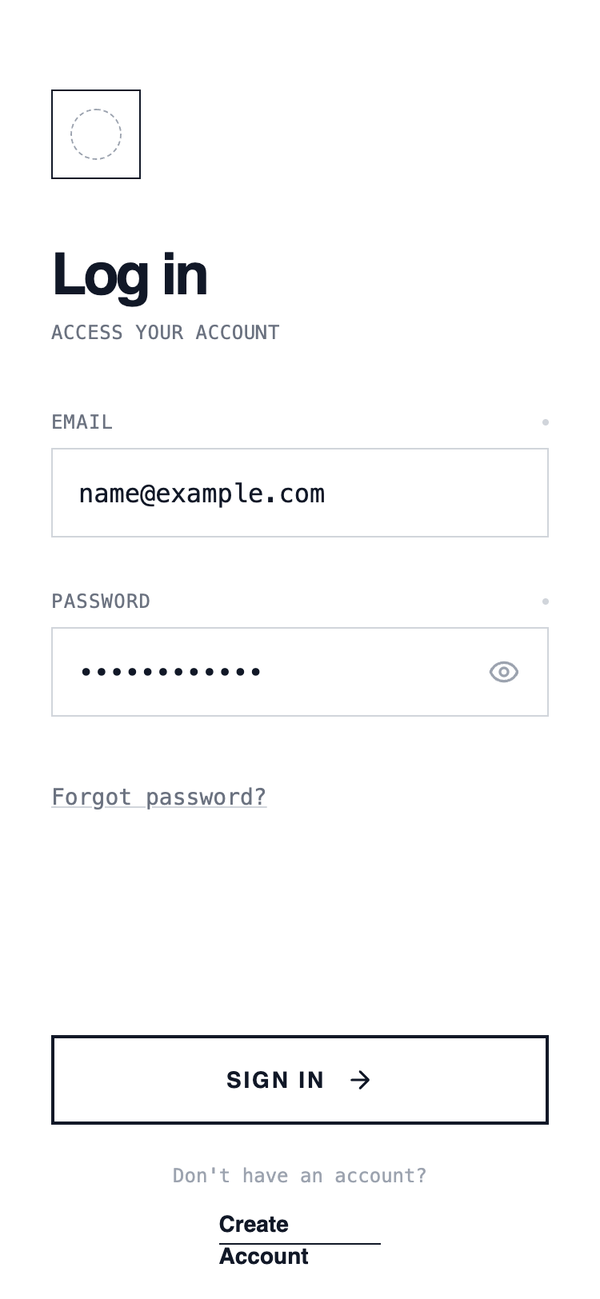
Column Authentication
A classic single-column authentication layout with vertically stacked inputs and actions. Optimized for clarity and speed, this layout guides the user top-to-bottom with minimal cognitive load and works well for fast login scenarios.
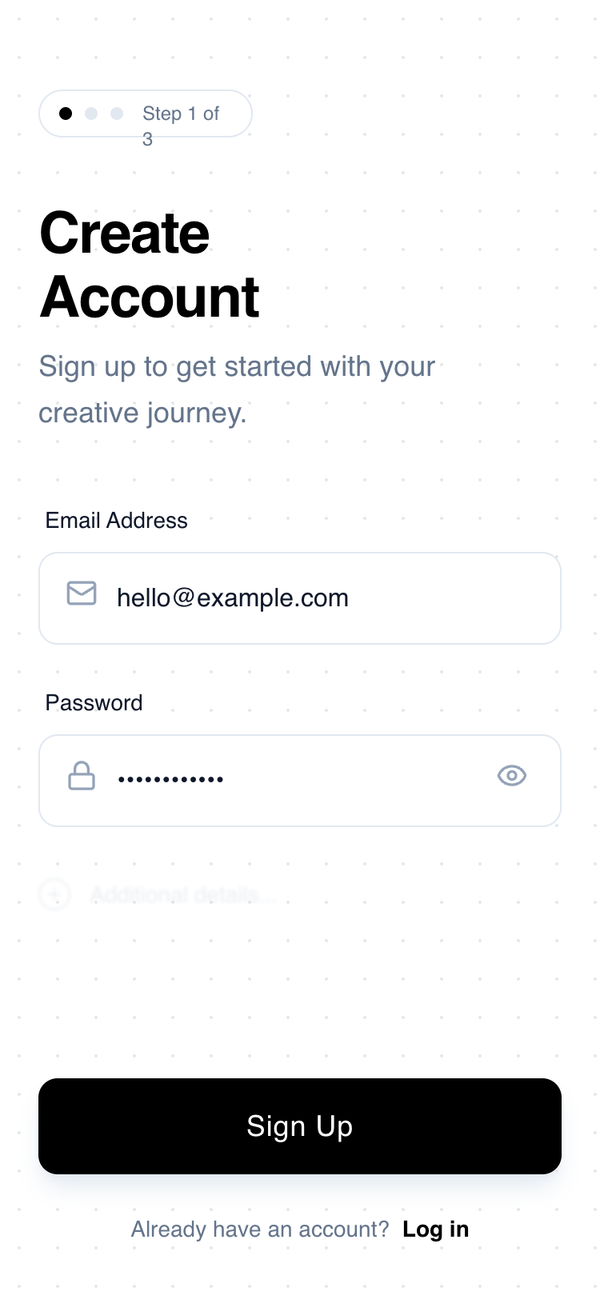
Progressive Sign-Up
A minimal, high-contrast mobile sign-up interface inspired by architectural wireframes. Characterized by a monochrome palette, geometric typography, and a progressive disclosure pattern. This design uses generous whitespace, a subtle dotted grid background, and tactile interaction states. Ideal for design-centric apps, creative tools, SaaS onboarding, or minimalist fintech products where clarity and reduced cognitive load are paramount.
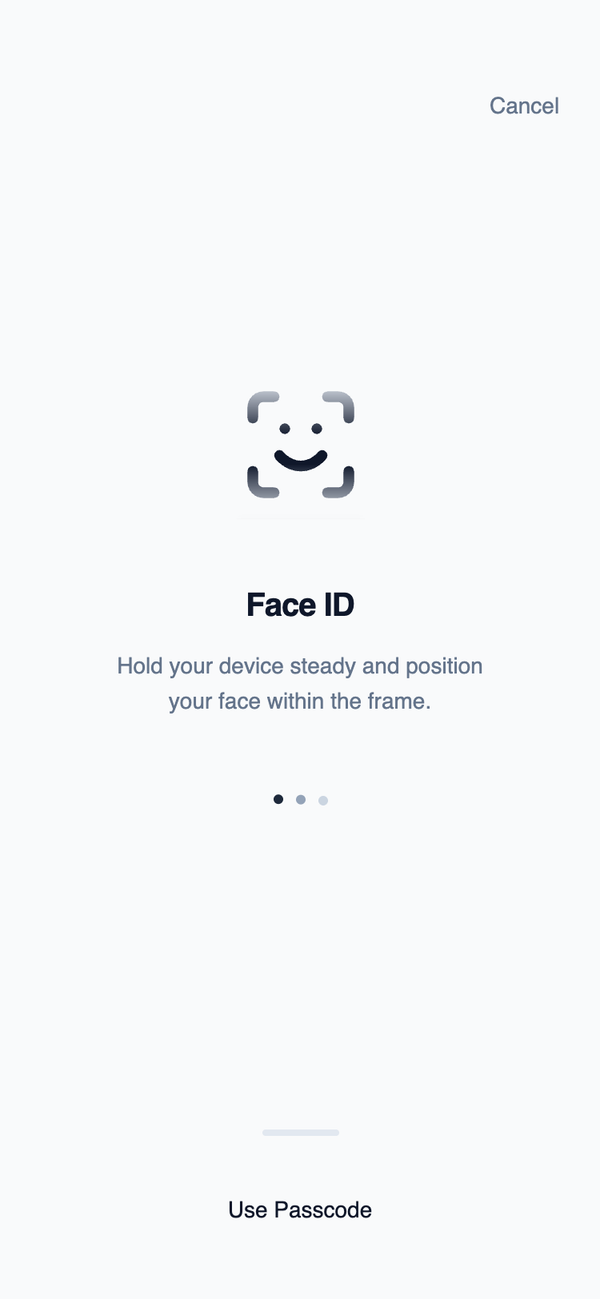
Biometric Authentication
A modal-like centered layout designed for biometric authentication moments. Minimal text, no buttons, and strong visual focus reflect system-level interactions rather than app navigation.
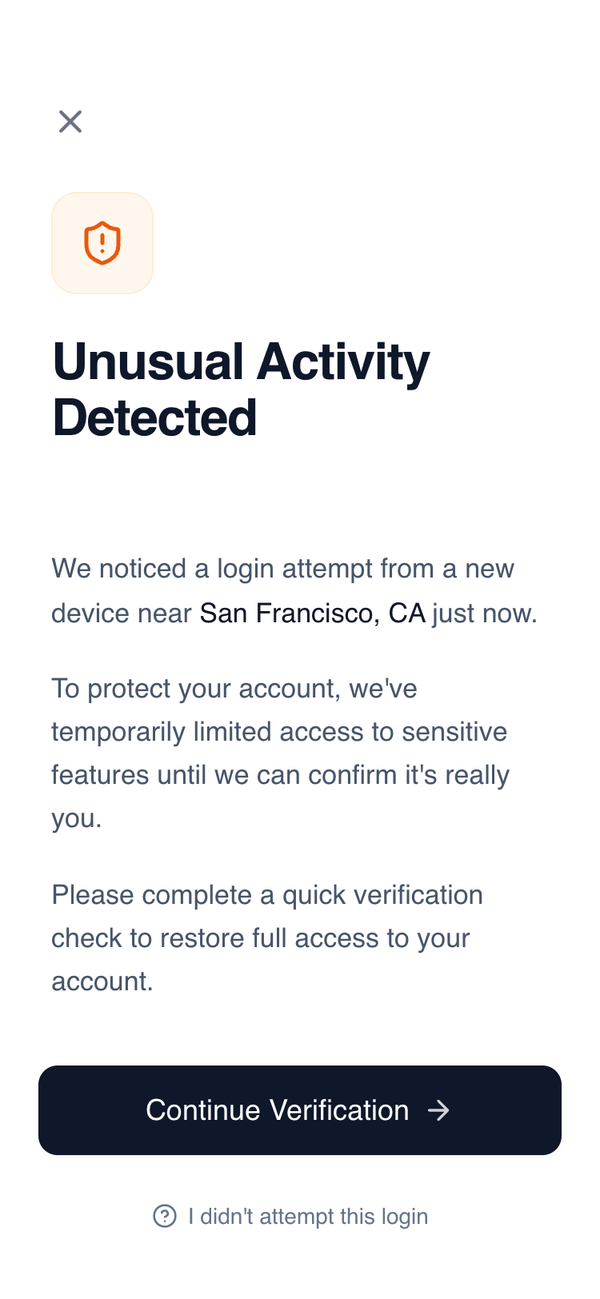
Security Verification Screen
Mobile-first security verification screen with a clean, serious aesthetic designed for high-trust environments like fintech, banking, and SaaS authentication. Features a minimalist palette centered around Slate-900 and White with a warm orange security accent. Layout emphasizes clarity and readability through General Sans typography, generous whitespace (32px horizontal margins), and a sticky action footer with a subtle white gradient mask. Ideal for account protection, identity verification, or alert notification flows.
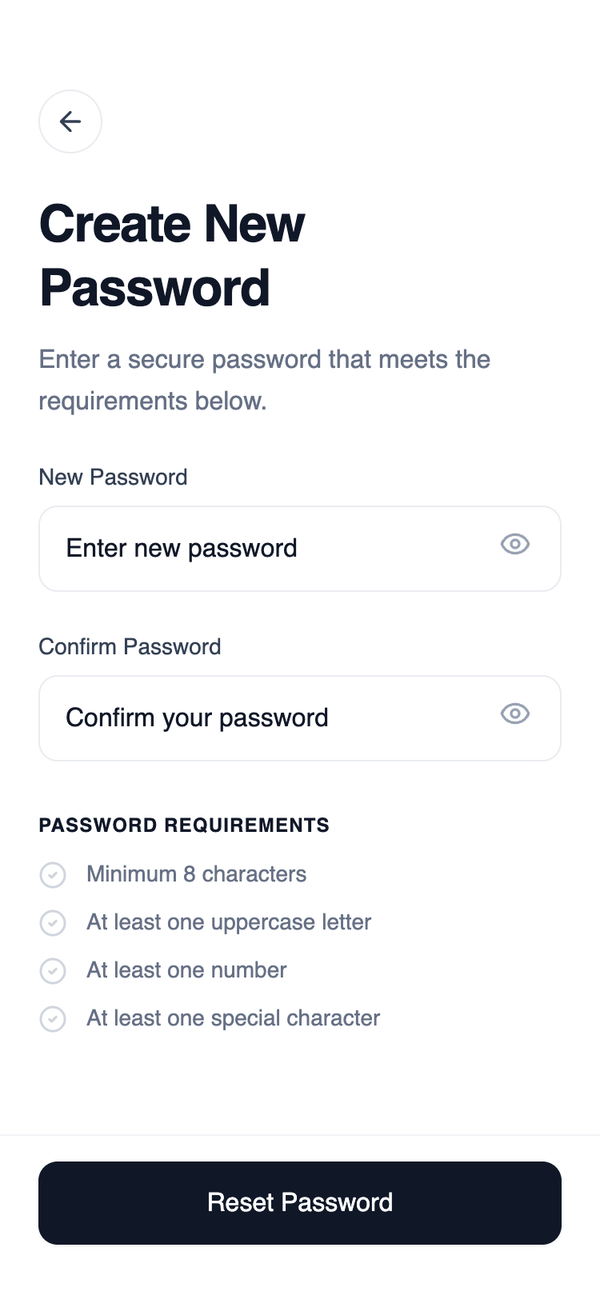
Minimal Reset Password Wireframe
A straightforward, single-input recovery layout that removes all unnecessary navigation. The structure supports fast completion and minimizes confusion during password reset initiation.
TruckAda | Secure Login
A high-end industrial logistics design system featuring a sophisticated dark mode aesthetic with glassmorphism, 3D interactive transforms, and an editorial-style typographic hierarchy. Built with a deep navy palette (#050811), vibrant blue accents (#2563EB), and subtle emerald highlights, this style is ideal for fintech, SaaS dashboards, logistics marketplaces, and enterprise platforms. It employs heavy Cabinet Grotesk headings and clean Satoshi body text, utilizing scroll-triggered entrance animations and mouse-responsive card tilting. Key components include glass-morphic input fields, shimmer-effect cards, and animated gradient backgrounds with carbon-fiber texture overlays.
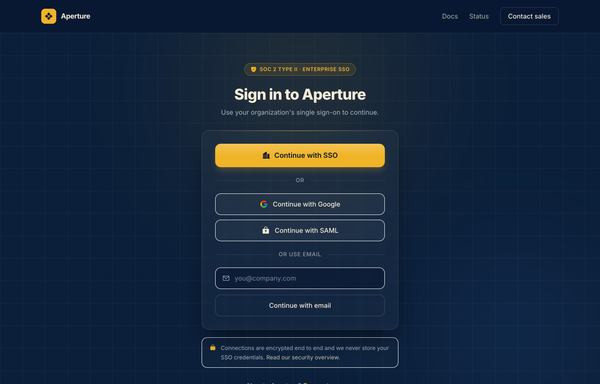
Aperture - Enterprise SSO Sign-In (Navy & Amber)
Enterprise SSO sign-in screen on deep navy with a single amber accent: a SOC 2 trust badge, a primary 'Continue with SSO' button, Google/SAML fallbacks and an email field, all in one centered glass card over a soft amber-glow ambient background. Inter, single-accent navy + amber.
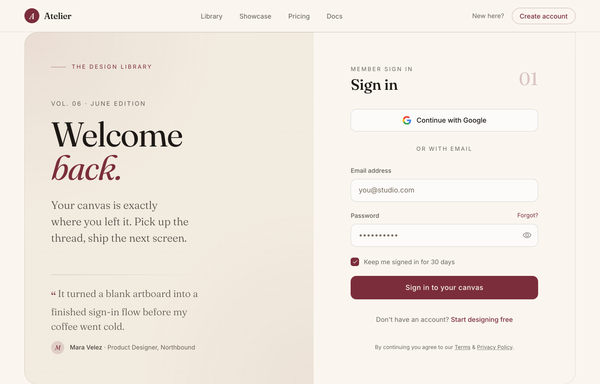
Atelier - Welcome Back (editorial serif burgundy login)
Editorial magazine-style login: warm cream + burgundy palette, oversized Fraunces serif "Welcome back." greeting with a testimonial, split against a clean Google-SSO + email sign-in card.
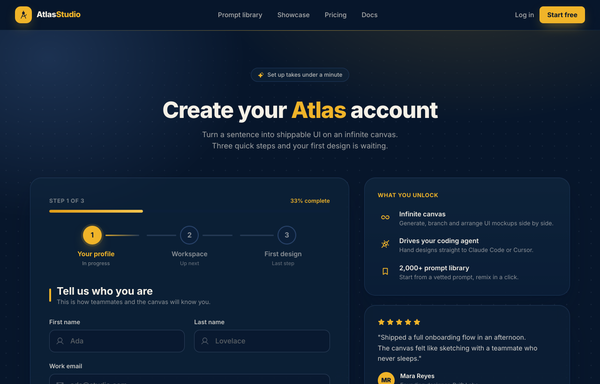
Atlas Studio - Charting Your Account, Step One of Three
Premium dark-navy multi-step signup / onboarding screen (step 1 of 3) for an AI design tool: a 3-step progress tracker, glassy translucent cards on a midnight-navy ground with soft amber glows, a single warm amber accent, focus-reactive fields, a password strength meter, a role selector, and a 'what you unlock' value panel with a testimonial.
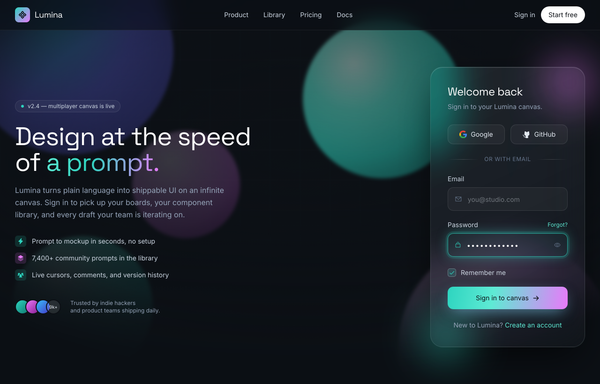
Aurora Glass - Sign in to the canvas
Dark aurora-glass split sign-in screen: frosted glassmorphic auth card with a glowing aqua focus ring and an aqua-to-magenta gradient CTA, floating over neon aurora blobs on near-black ink, beside a product pitch column. Space Grotesk + Inter.
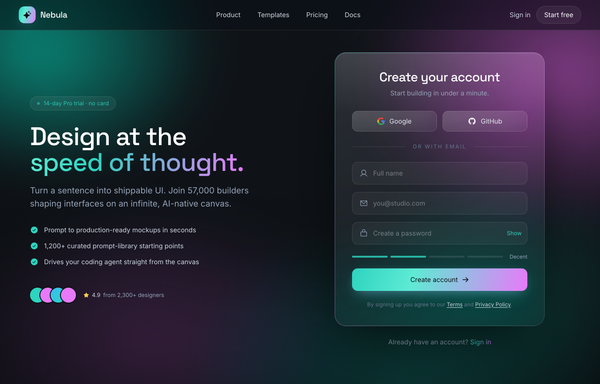
Aurora Glass - Sign Up at the Speed of Thought
A premium dark glassmorphism sign-up screen: a one-screen hero+signup landing on a near-black ink canvas lit by a slow-drifting teal+magenta aurora and film grain, under a translucent sticky glass nav. A two-column hero splits a marketing pitch on the left (a 'no card' trial pill, a Space Grotesk headline with a teal-to-magenta gradient 'speed of thought.' line, a teal-check benefit list and a 4.9-star social-proof cluster) from a frosted-glass auth card on the right that carries a teal-to-magenta gradient edge-light: Google + GitHub buttons above an 'or with email' divider, icon-leading full-name / email / password fields with a Show/Hide toggle and a four-segment strength meter, and a teal-to-magenta gradient 'Create account' CTA. Teal + magenta accents, Inter + Space Grotesk, plus a full-bleed glass trust strip.
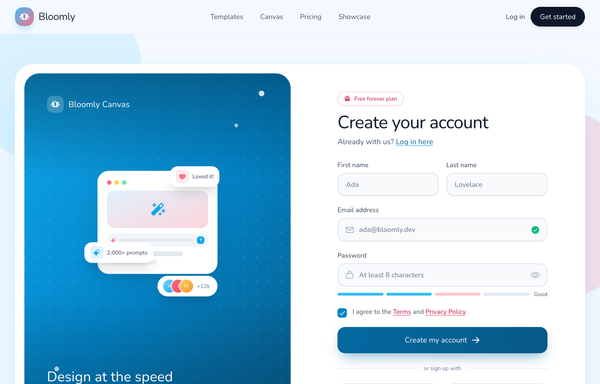
Bloomly - Illustrated friendly-sky split signup
Friendly illustrated split-screen signup for an AI design-canvas product ('Bloomly'): a soft sky-blue ground with one big white rounded card split into a left rich sky-gradient illustration panel (a tilted miniature design-canvas card with a tiny prompt bar, floating reaction/stat chips and an overlapping avatar stack) and a right create-account form, with a sky+coral accent system, chunky Nunito type, a password strength meter, a gradient CTA, Google/GitHub social auth, a sticky translucent nav and a logo trust strip.
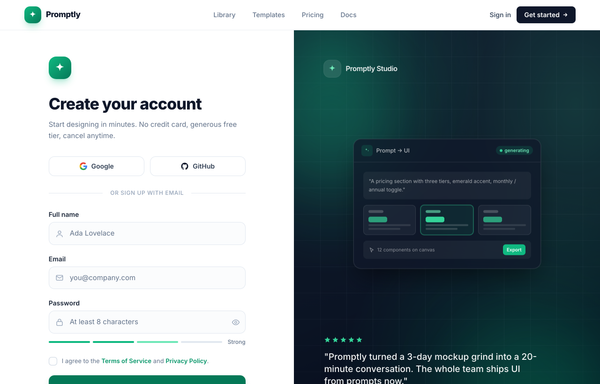
Create your account · Promptly - split-image emerald sign-up
A two-column desktop sign-up page: focused email + Google/GitHub social form on a bright white left half, dark emerald 'brand-mesh' panel with a floating product mock and testimonial on the right; sticky translucent nav, Inter, slate neutrals with a single emerald accent.
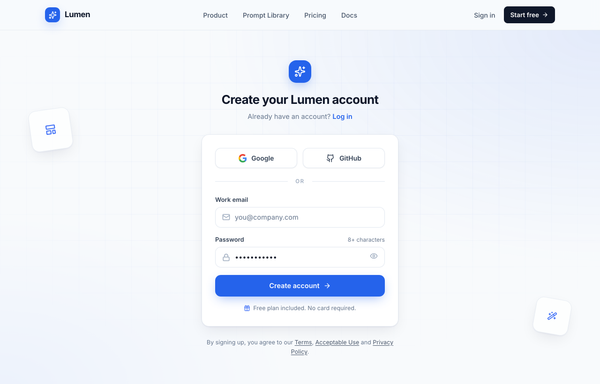
Create your Lumen account - centered card (cobalt)
Centered single-column signup card on a light slate canvas with a sticky blurred nav, Google/GitHub social auth, an email + password form, and a cobalt CTA over a quiet engineering-grid background.
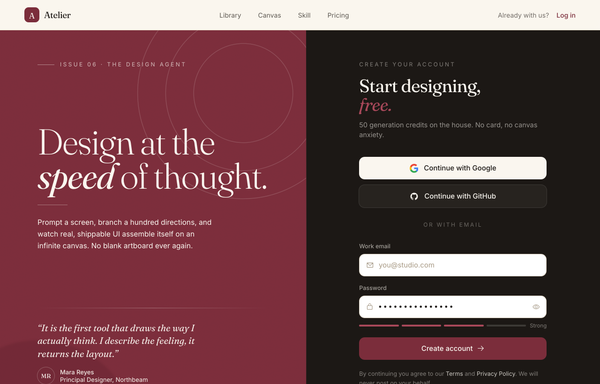
Design at the Speed of Thought - Editorial Split Sign-Up
An editorial, magazine-style sign-up screen built as a full split-screen landing: a sticky translucent cream nav over a two-pane main. The LEFT is an oversized Fraunces-serif brand panel on a textured deep-burgundy ground (film grain, faint concentric arcs, a soft bloom) with an 'Issue 06 . The Design Agent' eyebrow, a 'Design at the speed of thought.' display headline (italic 'speed'), a value paragraph and a pull-quote testimonial with an initials avatar plus a three-icon feature row. The RIGHT is a near-black ink account-creation column: a 'Start designing, free.' heading, Google + GitHub OAuth buttons above an 'or with email' divider, white burgundy-focus-ring email + password fields (an eye toggle + a four-segment strength meter) and a burgundy 'Create account' CTA. Below the split: a full-bleed cream 'Trusted in the studios shipping fastest' proof strip and a dark ink FAQ/footer accordion. Cream + burgundy + ink palette, Fraunces serif + Inter.
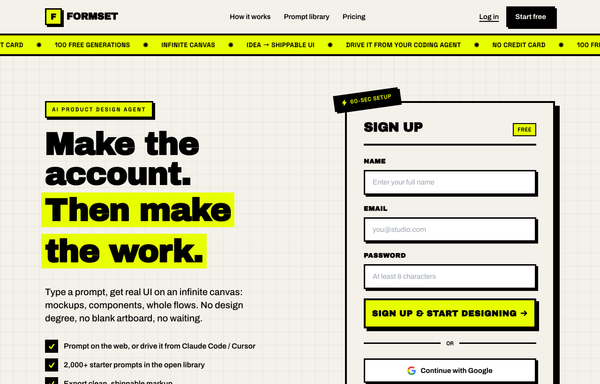
FORMSET - Make the account. Then make the work.
Neo-brutalist signup landing page: acid-yellow accent on off-white paper, thick black borders, hard offset shadows, uppercase Archivo Black type, a marquee ticker, and a name/email/password sign-up card as the hero.
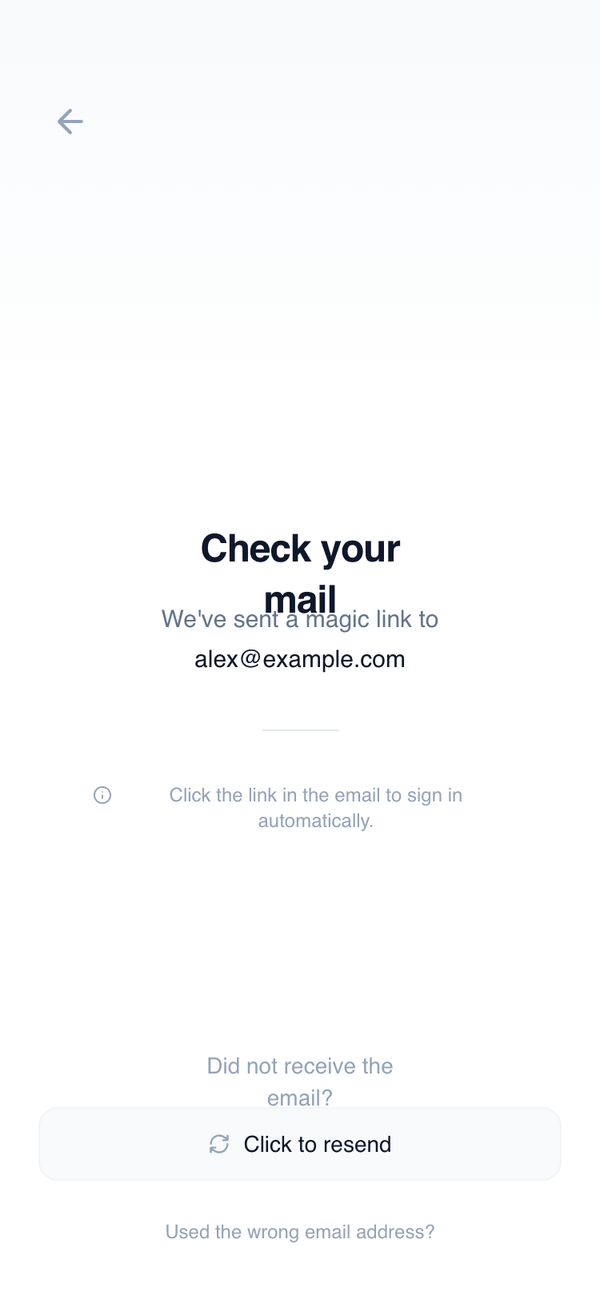
Magic Link Confirmation
A centered, message-driven layout designed to reassure users after initiating email-based authentication. Minimal actions and generous whitespace create a calm, waiting-state experience.
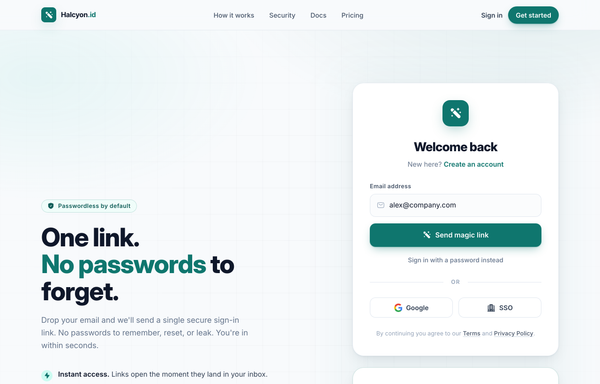
One Link, No Passwords - Passwordless Magic-Link Sign-In
A passwordless 'magic-link' sign-in page on a soft off-white canvas with a single teal accent: sticky nav, a two-column hero (pitch + benefits) beside a magic-link login card AND a 'Check your inbox' success card, plus Google/SSO social, a 3-step how-it-works, and a dark security stat strip.
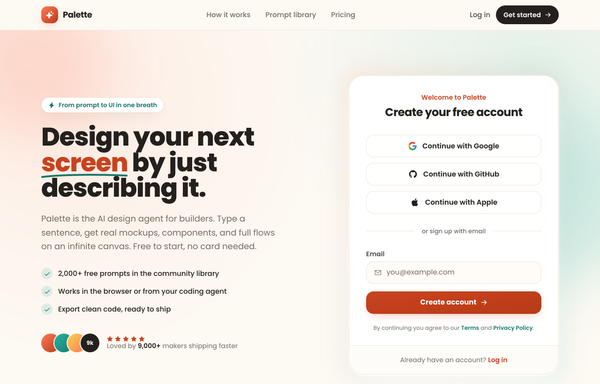
Palette - Social-first friendly sign-up
A warm, social-first sign-up screen on a cream canvas: a two-column hero+signup landing with a friendly product pitch on the left (hand-drawn underline, teal-check benefits, a 5-star social-proof cluster) and a white rounded card on the right that leads with three full-width stacked social-auth buttons (Google, GitHub, Apple) above an 'or sign up with email' divider and a single email field with a coral 'Create account' CTA. Coral + teal accents, Poppins, a sticky blurred nav, a logo marquee, a three-step how-it-works, and a dark gradient CTA band.
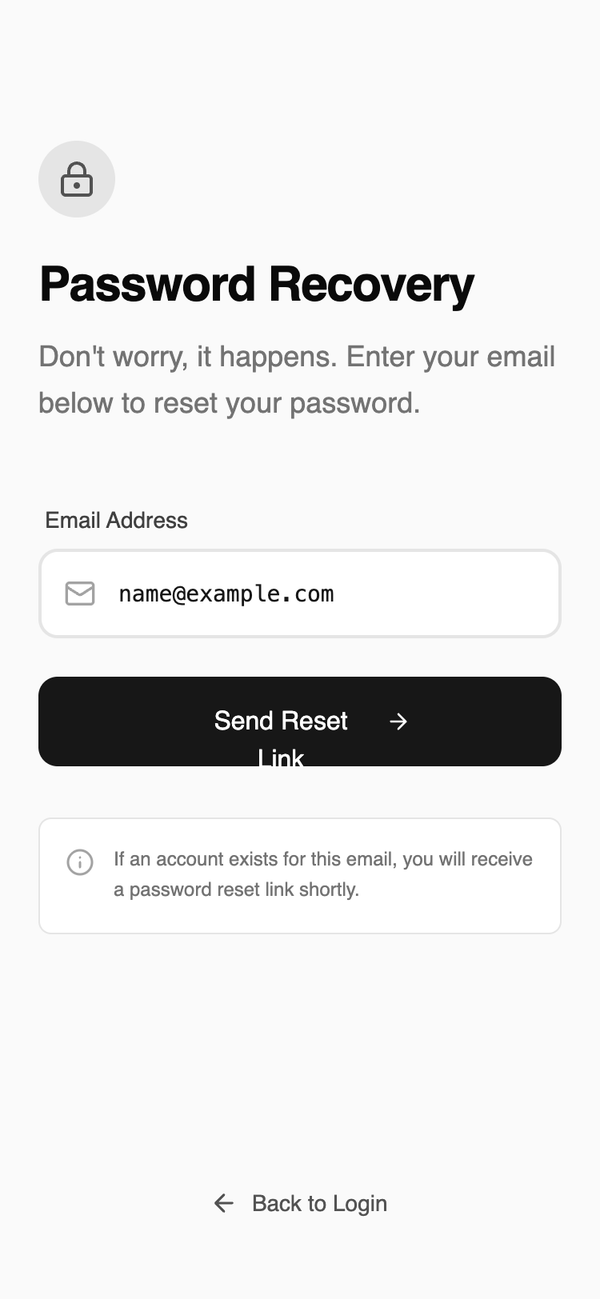
Password Recovery
A straightforward, single-input recovery layout that removes all unnecessary navigation. The structure supports fast completion and minimizes confusion during password reset initiation.
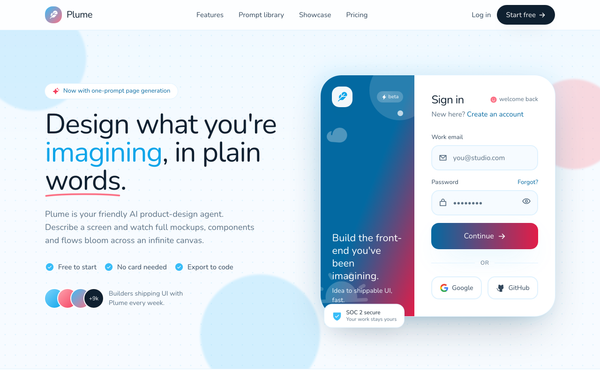
Plume · Sign in to your design canvas
Warm, illustrated AI design-agent sign-in landing in sky-blue and coral: a sticky frosted nav over a two-panel side-panel login card (gradient illustration aside plus email, password and social auth), floating blobs, dot-grid texture and rounded-everything Nunito type.
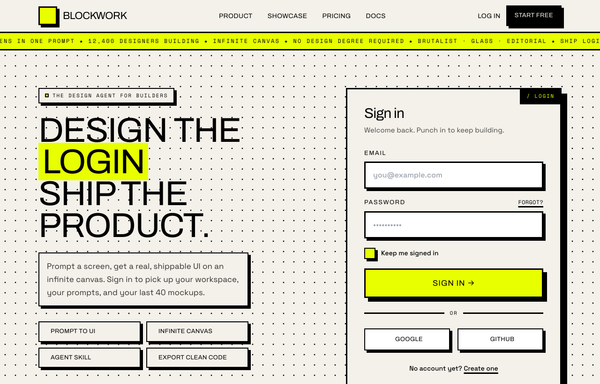
SIGN IN · BLOCKWORK - Brutalist Acid login
Hard neobrutalist login: warm off-white paper + electric acid-yellow accent, thick black borders and hard offset shadows, Archivo/Space Grotesk/Space Mono, brutalist sign-in card with email + password + Google/GitHub SSO over a full-bleed acid marquee.
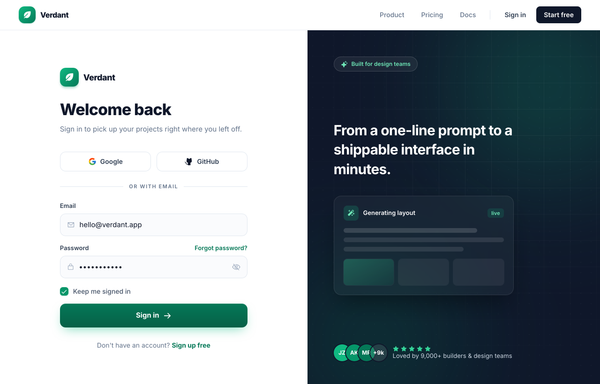
Sign in to Verdant - Classic Split (Emerald)
A full-bleed classic split sign-in page: white emerald-accented auth form on the left (social + email login, gradient Sign in CTA), a dark slate brand panel with ambient glows and a floating showcase card on the right, and a sticky nav above both.
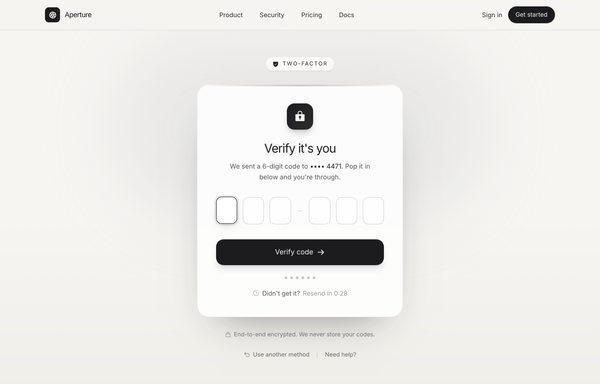
Verify it's you · Aperture (OTP / 2FA, graphite-platinum)
OTP / two-factor verification screen on warm paper with a graphite + platinum palette: a Two-factor eyebrow pill, a glass card with a lock icon, six single-digit code boxes, progress dots, a live resend countdown and a Verify code button. Inter, light mode, no saturated color.
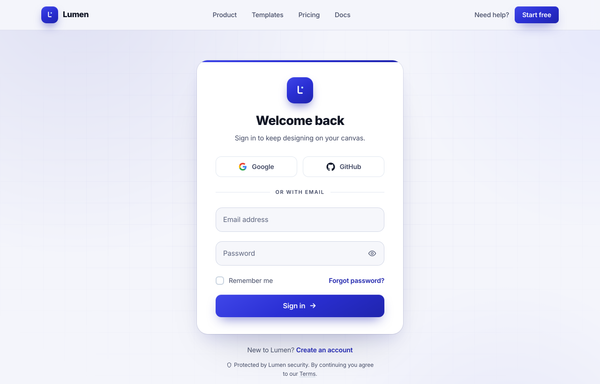
Welcome back · Lumen - centered-card (true cobalt)
A clean centered-card sign-in page on a soft off-white canvas with a single true-cobalt accent: sticky nav, a white rounded-3xl auth card (Google + GitHub social, floating-label email/password with a show/hide toggle, remember-me + forgot, gradient Sign in CTA), and ambient cobalt glows.
How to prompt a login page that looks designed, not generated
An AI design agent has a strong default for a login page, and most of those defaults add friction: an email-and-password form only, a confirm-password row that belongs on signup, twin equal buttons that blur login with sign up, no recovery link, a bare card on a dark purple gradient. A good prompt is really a list of constraints that override those defaults. Here is each default you need to override, the words that do it, and a template that bakes them all in.
Design a [light or dark] login page for [product], a [what it is] for [who it is for].
Sign in options first: [Google, Apple, GitHub] buttons and a passkey or magic-link option above an "or with email" divider, so most returning users never type a password.
The form: email and one password field with a show-password toggle. No confirm-password field, this is login, not signup.
One primary action: a single solid [Log in] button. Demote sign up to a quiet "New here? Create an account" link so the two pages never blur.
Recovery: a "Forgot password?" link right beside the password field, reachable on any device.
Helpful states: a specific error like "That password is not right. Reset it?" that keeps the email pre-filled, plus the loading and the two-factor or one-time-code step if you use one.
Style: a neutral base with one [accent] color reserved for the primary button. Headline typeface [name], body [name], not the default Inter and no purple gradient.
Trust line: a short privacy note under the button, and a clear path back to the marketing site.
Login is not signup
Default: It builds one ambiguous form with twin equal-weight Sign In and Sign Up buttons, and often a confirm-password field, so a returning user has to stop and decide which door they are at.
Constrain it: Make it clearly a login screen with one primary Log in button, and demote sign up to a quiet "New here? Create an account" link.
Providers and passkeys first
Default: It builds an email-and-password form only, so every returning person has to remember and type a password even though most would rather tap a provider or use a passkey.
Constrain it: Name the providers you support (Google, Apple, GitHub) and a passkey or magic-link option above an "or with email" divider, so the form is the fallback, not the default.
One password field, made visible
Default: It masks the password with no way to reveal it and sometimes adds a confirm-password row, so a single typo blocks a returning user with no way to spot it.
Constrain it: Keep one password field with a show-password toggle so people can catch typos, and drop the confirm field, login never needs it.
A way back in
Default: It ships only the happy path and leaves out recovery, so the one person who forgot their password is stuck at the door with nowhere to go.
Constrain it: Add a "Forgot password?" link right beside the password field, available on any device, so a stale password is one tap to reset.
Errors that help, not scold
Default: It shows a vague "Login failed" and wipes the fields, so the user retypes their email and password from scratch with no idea what went wrong.
Constrain it: Ask for a specific message that names the fix, keeps the email pre-filled, and offers the next step, for example "That password is not right. Reset it?".
Color and type
Default: Left alone it defaults to Inter, a dark theme with a purple gradient, and rainbow accents used as decoration.
Constrain it: Name a headline and body typeface and one accent color on a neutral base, and reserve that color for the primary log-in button.
Frequently asked questions
What makes a good login page?
Low friction for a returning user. Lead with the providers and passkeys people already use so most never type a password, keep one email and password field with a show-password toggle, put a forgot-password link right where it is needed, and keep one clear primary action. A good login page gets the right person back in fast and never makes them guess which door they are at.
What is the difference between a login and a sign up page?
A login page lets a returning person back in, so it should be short: providers first, then email and one password field, a forgot-password link, and a single Log in button. A sign up page creates a new account, so it carries a value panel and a couple of fields. Keep them as distinct screens with clear labels, and link between them with a quiet "New here? Create an account" rather than two equal-weight buttons that blur together.
Should a login form show the password?
Give people the option. Mask the password by default but add a show-password toggle, because when people can see what they type they make fewer mistakes and can review it before submitting. Never add a confirm-password field on a login page; that belongs on sign up, and on login it just doubles the typing.
Why does my AI-generated login page look generic?
Because a vague prompt gets the model defaults: an email-and-password form only, a needless confirm-password row, twin equal Sign In and Sign Up buttons, no social login or recovery, and a bare card on a dark purple gradient in Inter. Put providers and passkeys first, keep one password field with a show toggle, add a forgot-password link, name one accent color and a non-default typeface, and it stops reaching for the average.
How do you write a prompt to generate a login page UI?
Describe the brief, not the vibe: the product and who it is for, the sign-in providers and passkey first, one email and password field with a show toggle, a single Log in button with sign up demoted to a link, a forgot-password link, the error and loading states, one accent color, and a named typeface. The template above walks through each part, and you can open any example here to see a full prompt that works.
Can I use my own brand colors and providers?
Yes. Generate the layout first, then describe your accent color, typeface, headline and the providers you support in plain language and branch a variant. Every design comes back as real, editable code, so wiring in your auth and brand happens in your own repo, not a rebuild from a picture. Stuck on something? Ping us and we will sort it out together.